728x90
아두이노 IDE로 진행함.
1. 연결
2. 코드작성
3. SpringBoot 서버셋팅
4. 보드매니저 셋팅
5. 라이브러리 설치
6. 소스 작성 및 업로드
7. 공유기 연결 안될 시 무적의 핫스팟을 이용하자
1. 연결
2. 코드작성
#include <ESP8266WiFi.h>
#include <ESP8266HTTPClient.h>

const char* ssid = "네트워크명";
const char* password = "비밀번호";

void setup() {
  Serial.begin(115200);

  // Wi-Fi 연결
  WiFi.begin(ssid, password);
  while (WiFi.status() != WL_CONNECTED) {
    delay(500);
    Serial.print(".");
  }
  Serial.println("\nWiFi connected");

  // HTTP 요청
  WiFiClient client;
  HTTPClient http;

  http.begin(client, "http://192.168.0.15:8080/test");
  int code = http.GET();

  Serial.print("HTTP code: ");
  Serial.println(code);
  Serial.println(http.getString());

  http.end();
}

void loop() {
}
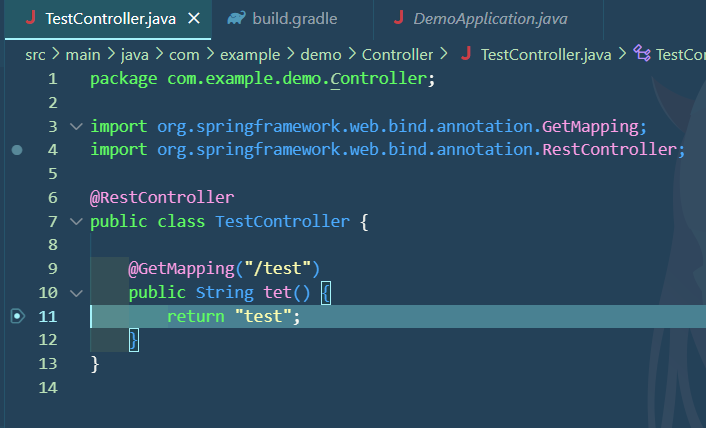
3. SpringBoot 셋팅
package com.example.demo.Controller;

import org.springframework.web.bind.annotation.GetMapping;
import org.springframework.web.bind.annotation.RestController;

@RestController
public class TestController {

    @GetMapping("/test")
    public String tet() {
        return "test";
    }
}
4. 보드매니저 셋팅
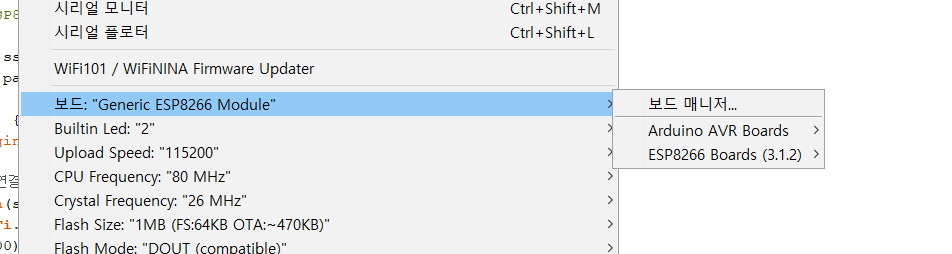

설치하기
5. 라이브러리 설치
파일 > 환경설정 > 추가적인 보드 매니저 URL에 아래와 같이 넣는다
https://arduino.esp8266.com/stable/package_esp8266com_index.json


6. 소스 작성 및 업로드
윈도우 + x > 장치관리자 > 포트 쪽에 COM 포트 몇번 쓰는지 확인
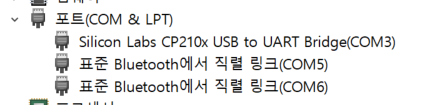
USB마다 포트가 다르다. 제 기준으로는 COM3 입니다.
포트 설정 후에 소스 업로드하기
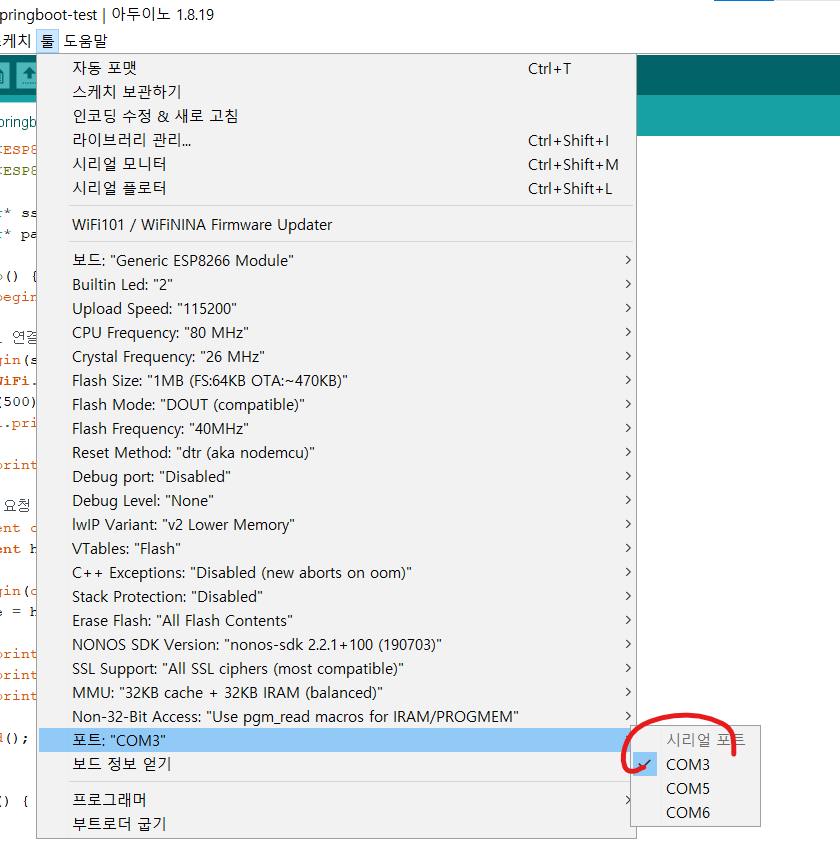
까먹지 말고
보드 ESP8266으로 설정되었는지 확인하기

코드 업로드하기

모니터로 확인하기
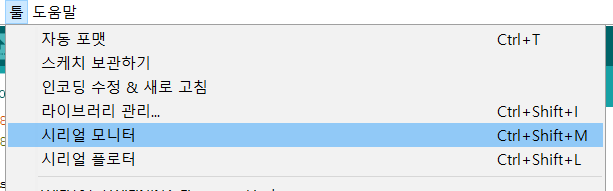
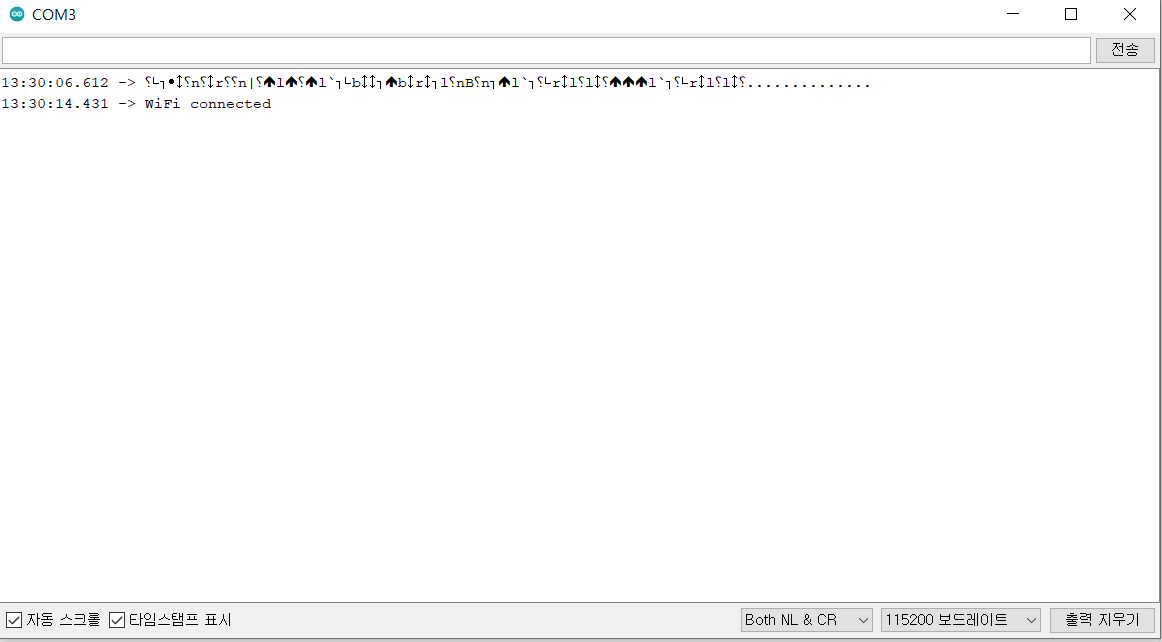
업로드 끄탄면 COnnected가 뜨면서
디버깅이 걸린다.
7. 무적의 핫스팟
ESP8266은 제약조건이 좀 있는 것 같다.
- 비밀번호 특수문자
- 공유기 2.4ghz만 지원
그래서 다음과 같은 조건으로 설정하면 된다.
1. 휴대폰을 노트북(spring boot 켜진 컴퓨터)과 같은 네트워크에 연결
2. 휴대폰 핫스팟을 킨다(비밀번호 단순하게)
3. 핫스팟 이름을 영어로 설정한다
4. 코드에 ssid와 password를 핫스팟으로 연결시킨다.

'하드웨어 > atmega128' 카테고리의 다른 글
| atmega128 - interrupt 사용하여 택트버튼으로 FND 1부터 4 테스트 #14 (1) | 2025.07.26 |
|---|---|
| atmega128 - interrupt 사용하여 택트버튼으로 LED 켜기 #13 (0) | 2025.07.14 |
| atmeaga - esp8266 펌웨어 올리기 (0) | 2025.03.27 |
| atmega128 - ESP8266 모듈 baud rate 변경 #11 (0) | 2025.03.27 |
| atmega128 - ESP8266 모듈을 이용해 웹서버에 get request보내기 #10 (0) | 2025.03.26 |


